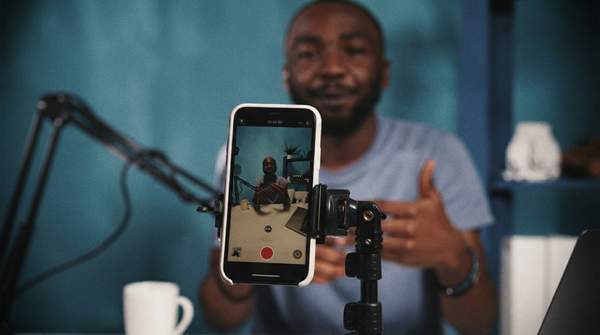
If you create content entirely from your phone, you don't need a dozen apps—you need three that each do one job well. Canva handles graphic design, CapCut handles video editing, and Later handles social media scheduling. Here's how they compare, including the free-tier catches that decide whether you'll end up paying.
Canva: Your Mobile Graphic Design Studio
Canva's core promise is turning non-designers into capable visual creators through drag-and-drop editing and AI-powered design assistance. A Lovable guide to content creation tools, which evaluated apps on ease of use, output quality, pricing transparency, and customization depth, ranks it first for visual design, covering social media graphics, presentations, marketing materials, and brand collateral.
The feature set is built around volume and speed: over 100 million templates across content formats, plus Magic Studio tools including Magic Write for copywriting, Magic Design for automated layouts, and Magic Media for text-to-image generation. A Brand Kit keeps fonts, colors, and logos consistent across projects, and real-time collaboration lets teams edit simultaneously.
Know the ceilings before you commit. The free tier covers basic design needs, but Lovable flags that it lacks transparent PNG exports, and power users hit customization limits compared to Adobe Creative Suite. Pro runs $119.99/year and unlocks premium templates, Background Remover, and Magic Resize; Teams costs $149.90/year for up to five users. Large files also load slowly, and video upload limitations frustrate creators working with longer content—so treat Canva as your design layer, not your video editor.
CapCut: Powerful Video Editing On-the-Go
CapCut is the mobile-first choice for short-form video. According to Jessica Becker's breakdown of CapCut's 2026 plan restructure on BIGVU, the mobile app is the most popular version and where trending templates originate—best for social-first, effects-driven content, though limited for multi-track or complex projects.
The free-versus-paid line matters more here than with the other two apps. CapCut's own comparison guide describes the free Standard plan as providing the essential basics without cost, aimed at beginners and social media creators doing quick edits. Conor Eliot's breakdown on the OpusClip blog puts the split plainly: the free version gives basic editing with 1080p exports and watermarks, while Pro removes watermarks and adds 4K exports, premium effects, and AI tools.
The upgrade trigger is mechanical, not optional. CapCut's help documentation explains that when you export, the system scans your project, and if it detects any Pro-only asset—a badged template, effect, font, music track, sticker, AI tool, premium transition, or LUT—the export panel flags that the video uses Pro content. This behavior is consistent across web, desktop, and mobile. So if you build a video from trending templates, expect a Pro prompt at export. Cloud storage is another squeeze point: Becker notes the free plan's cap fills quickly—one hour of 1080p footage is roughly 10–15 GB—while Pro includes 100 GB or more.
Later: Streamlined Social Media Scheduling
Once your graphics and videos exist, Later takes over distribution. Lovable's guide positions it as the best option for social scheduling: a visual-first platform that manages multi-platform posting through a visual calendar, handling Instagram, TikTok, Facebook, LinkedIn, Pinterest, and three other networks with auto-publishing and cross-platform posting.
The visual calendar is the practical draw for phone-based creators. Instead of guessing how a feed will look, you arrange posts on a drag-and-drop grid before anything goes live, then let auto-publishing handle the actual delivery across platforms. That removes the daily manual posting routine that otherwise pulls you back into each app.
Later's role in this toolkit is deliberately narrow: it's the distribution layer, not a creation tool. You'll still design in Canva and cut video in CapCut—but once assets are exported, Later is where they get staged, sequenced, and published without you needing to be online at peak posting times.
Mobile Content Creation App Comparison
Here is the side-by-side view, with each app judged on the same criteria: what it's for, what it does best on a phone, and where it falls short. The verdict that emerges is task-specific rather than hierarchical—each app wins its own category.
| App | Primary Use Case | Key Mobile Feature | Noteworthy Limitation |
|---|---|---|---|
| Canva | Graphic design for non-designers: social graphics, presentations, marketing materials | Drag-and-drop editing, 100M+ templates, Magic Studio AI tools, Brand Kit consistency | Free tier lacks transparent PNG exports; customization ceilings for power users; slow loading on large files |
| CapCut | Mobile video editing for short-form, social-first content | Trending templates and effects; free version covers basic editing with 1080p exports | Free exports carry watermarks; any Pro-badged asset triggers a Pro prompt at export; free cloud storage fills fast (1 hour of 1080p ≈ 10–15 GB) |
| Later | Social media scheduling across platforms | Visual calendar with auto-publishing and cross-platform posting to Instagram, TikTok, Facebook, LinkedIn, Pinterest and more | Distribution only—it doesn't create assets, so it depends on the other tools in the workflow |
Read the table as a division of labor. Canva is the clear pick for graphics, CapCut for video, and Later for scheduling—but the CapCut row is where budget decisions actually get made. If your videos use trending templates or premium effects, the free tier's watermark and Pro prompts will push you toward a subscription; if you stick to basic edits, the free version's 1080p exports may be enough.
Building a Cohesive Mobile Content Workflow
The three apps chain together into a single-phone production line:
- Step 1: Visual asset creation in Canva. Build thumbnails, cover images, and static posts from templates, keeping fonts and colors consistent with Brand Kit.
- Step 2: Video editing in CapCut. Cut your Reels and TikToks using trending templates and effects—budgeting for a Pro prompt if you touch badged assets.
- Step 3: Scheduling in Later. Drop finished graphics and videos into the visual calendar, sequence them across Instagram, TikTok, and the other supported networks, and let auto-publishing handle delivery.
The workflow's weak link is the handoff between apps, not any individual tool. Canva's slow handling of large files and video uploads means you should finish video work in CapCut rather than trying to push long footage through Canva. And because CapCut's free cloud storage fills quickly, export finished videos promptly rather than letting projects accumulate.
One boundary worth stating: this comparison covers graphic design, video editing, and scheduling only. It doesn't address writing tools, audio editing, live streaming, or full desktop functionality, and it's a selection guide rather than a hands-on tutorial for each app.
Choosing Your Essential Mobile Content Creation Toolkit
Mobile-first creators should select Canva for graphic design, CapCut for video editing, and Later for social media scheduling, leveraging their individual strengths to build a comprehensive workflow. The success test is concrete: a creator successfully produces and schedules diverse content—graphics and videos—directly from their smartphone using a combination of these apps, without needing to switch to a desktop. If you find yourself opening a laptop to finish a post, that's the signal one of the three tools isn't pulling its weight—most likely CapCut's free tier, where the watermark-and-Pro-prompt pattern is the first friction point you'll hit.